Dyndns not working
Practical steps to diagnose and fix “dyndns not working” issues, from client config to router and firewall checks.
Dynamic DNS (DynDNS or DDNS) services are designed to keep a domain name aligned with a changing public IP. When dyndns not working, it can feel like your remote access or home server has vanished. The most common causes are credential or configuration errors, network issues, or the DDNS provider’s service problems. This guide walks you through a practical, methodical approach to diagnose and fix problems without guessing.
Start with the basics: confirm the service and your credentials
Before you dive into device settings, confirm whether the problem is with the DDNS service or your local setup.
- Check the status page of your DDNS provider (No-IP, Dyn, or another service). Look for recent outages or maintenance notices.
- Confirm your account is active. If payments are due or licenses expired, updates may be paused.
- Verify credentials (username, password, hostname) in the DDNS client or router. Even a small typo or a recently rotated password can break updates.
- Confirm the hostname you configured actually exists in your account and is set to use the correct domain name or host.
What to verify in your client or router:
- The hostname you registered matches what the DDNS client uses.
- The update interval is set to a sane value (not too aggressive, not too long).
- The authentication method matches what your provider expects (some use tokens or keys in addition to a password).
If you’re unsure, temporarily test with a fresh hostname in the same account to see whether updates succeed. If the new hostname updates, the issue is tied to the old hostname configuration rather than the network.
Check your device and DDNS client configuration
A lot of “dyndns not working” complaints come from a misconfigured client. This could be a software client on a PC, a dedicated NAS app, or a router’s built-in DDNS feature. Does blink security cameras work with 5g internet
- Ensure the DDNS client is running if you’re using a PC-based client.
- If you’re using a router, verify the DDNS feature is enabled and the correct service provider is selected (No-IP, DynDNS, etc.).
- Confirm the update URL or API endpoint as provided by the service. Some providers require a specific dynamic update URL. An incorrect URL will yield errors.
- Check for any optional fields or tokens. Some services require a separate host name, a domain, or a token to authorize updates.
Common error messages to look for:
- Authentication failed: likely bad credentials or an account lock.
- Invalid hostname: perhaps the hostname is not registered or the domain is misspelled.
- Update rejected: may indicate a policy issue (e.g., frequent updates beyond the allowed rate).
If the client supports logs, enable verbose or debug logging, attempt an update, and inspect the resulting log lines for error codes or messages.
Inspect network factors that can block DDNS updates
Even with correct credentials and settings, network problems can prevent updates from reaching the DDNS provider.
- Check outbound connectivity on port(s) used by the DDNS provider. Traditional DDNS often uses HTTP(S) to update endpoints. Confirm port 80/443 outbound is open.
- If you’re behind CGNAT or a strict firewall, make sure the updater can reach the provider. Some corporate networks or residential APN setups block dynamic updates.
- Confirm your public IP address type. If you’re behind a carrier-grade NAT, updates may still reflect the old IP on the provider’s side until the next renewal. Some providers handle this better than others.
- Look for IP change frequency. If your IP isn’t changing, a DDNS update may not be triggered. Some clients only send updates after a detectable IP change. Others poll at intervals.
Router considerations: Brinker international payroll company
- Ensure NAT settings aren’t interfering with the update request path.
- If you have multiple WANs or failover, make sure the router uses the correct WAN for outbound updates or supports DDNS across interfaces.
- Disable any VPNs or outbound proxies that might alter the source IP seen by the DDNS service.
Table: Typical firewall and network checks
| Checkpoint | What to look for | How to fix |
|---|---|---|
| Outbound ports | 80/443 accessible to update servers | Open or allow through firewall; test connectivity with a browser or curl |
| DNS resolution | Hostname resolves correctly from the updater host | Fix DNS settings or use a known-good resolver |
| IP address consistency | Public IP changes when router reboots or interface resets | Investigate ISP behavior; some changes may take minutes to propagate |
| VPN/proxy | Updater traffic not routed through VPN/proxy | Disable VPN/proxy or configure DDNS to bypass them |
If you can, run a test from the same device using a simple curl command to the provider’s update URL. Compare the response to what the UPDATER is supposed to receive. A mismatch often points to a credential or URL misconfiguration rather than a network problem.
Examine logs and recent changes for clues
Logs are your best friends when dyndns not working. They show exactly where the process stalls.
- Look for timestamps that correspond to attempted updates.
- Note error codes and their descriptions. Common codes point to authentication or permission issues.
- Check for changes in password, token, or hostname around the time the failures started.
- Review system logs after a power cycle or router reboot. Sometimes clocks drift, causing token expiry or nonce mismatches.
If you’re using a router with a built-in DDNS function, many have a Test/Check button that performs a simulated update. Use it to confirm the router can reach the provider and validate credentials. Microsoft Edge secure network VPN
When you find a specific error code, search the provider’s knowledge base for that code. The exact wording “invalid password,” “account suspended,” or “update rejected” often has tailored steps.
Special cases: common failure modes and how to handle them
- No IP update after a reboot: Some devices or ISPs lock updates until a renewal or a new connection is established. A manual trigger or a short manual refresh can re-synchronize.
- No updates after password change: You must update the password in the DDNS client everywhere it’s stored. This includes routers, NAS devices, and desktop clients.
- DNS mismatch after update: Sometimes the dynamic DNS returns a different IP than the one currently in use by your remote client. Confirm your remote access URL resolves to the current public IP after an update.
- Provider side outage: If the provider reports issues, you might need to wait. Consider a status page or social updates to confirm.
For this reason, it can be helpful to monitor more than one DDNS provider temporarily. If one service is down, you can switch to a backup while the primary is restored.
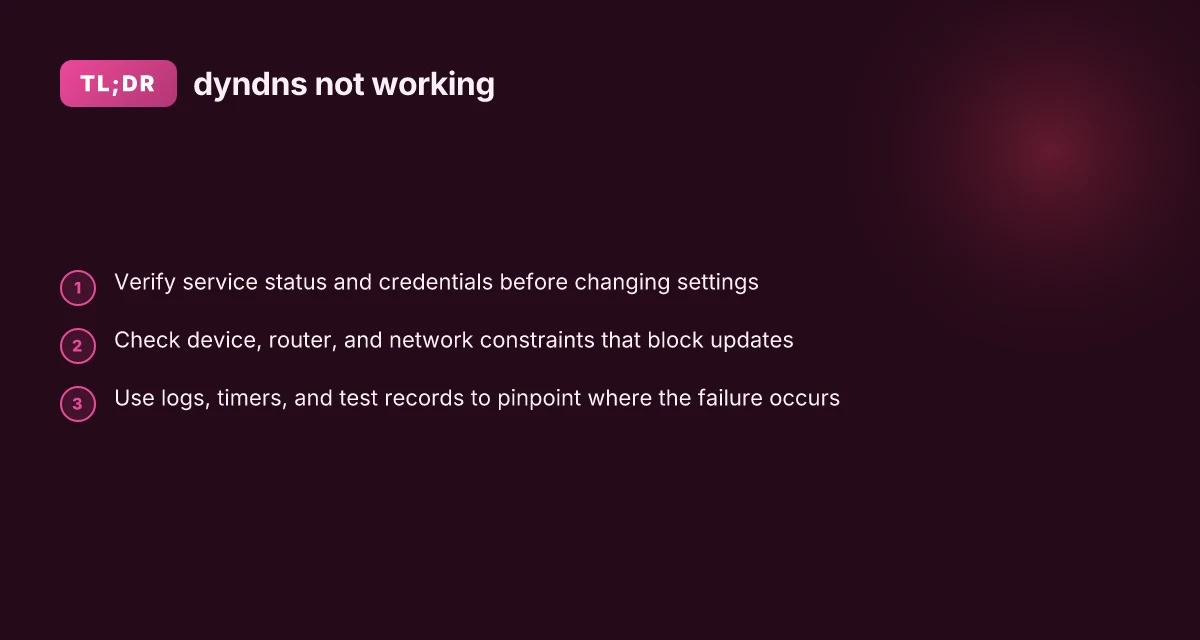
A practical troubleshooting checklist you can follow
- Confirm the provider status: check for outages or scheduled maintenance.
- Verify the hostname and credentials: confirm the exact hostname, username, password, or token.
- Validate the update URL and method: HTTP vs HTTPS, and whether a token is required.
- Test connectivity from the updater device: ping, DNS resolution, and outbound HTTP(S) tests.
- Review device logs: look for authentication failures, DNS errors, or HTTP error codes.
- Check for IP address behavior: is your IP changing, is the public IP visible to the provider, and does the update reflect the current IP?
- Validate firewall and NAT settings: ensure the updater can reach the provider unimpeded.
- Try a manual update: use curl or a browser to trigger an update URL (if supported) and compare results with the actual updater.
- Reboot if reasonable: a clean restart can clear stuck states, but avoid unnecessary reboots as a first step.
If you document each step, you’ll often see a pattern emerge: credentials first, then network, then provider-specific quirks.
Quick comparison: DDNS providers and common workflow
| Aspect | No-IP | DynDNS | Other DDNS providers |
|---|---|---|---|
| Typical update method | Client software or router update | Client software or router update | Many use similar HTTP(S) endpoints |
| Common failure | Wrong credentials, hostname misconfig | Token or API key issues, password change | API changes or endpoint changes |
| Best practice | Use an app-specific password or token if supported | Keep credentials updated; enable logs | Check provider’s knowledge base for endpoint changes |
| Troubleshooting approach | Start with credentials, then network | Validate token, then hostname | Use provider’s test/update tools |
Note: The exact steps can vary by provider. If your provider is No-IP, Dyn, or another service, consult their knowledge base for service-specific error codes and steps. NordVPN discount: how to get the best deals on NordVPN in 2026
Best practices to prevent future “dyndns not working” incidents
- Keep credentials up to date: rotate passwords or tokens on a schedule and update all devices.
- Enable logging and set reasonable update intervals: frequent updates aren’t always necessary and can trigger rate limits.
- Document your setup: hostname, provider, update URL, and device used. A one-page crib sheet saves time during outages.
- Have a backup plan: consider a second DDNS provider or a static VPN path for critical remote access.
- Monitor status pages: subscribe to outage notices or alerts for the DDNS provider in use.
- Test periodically: schedule a quarterly check to confirm updates succeed across devices.
Conclusion: when dyndns not working, start with the basics, verify your credentials and hostname, then move through network checks and logs. Most issues unwind quickly once you identify whether the blocker is authentication, connectivity, or provider-side problems. If you still struggle after following this guide, consider reaching out to your DDNS provider’s support with a concise summary of the steps you’ve tried and the exact error messages you’re seeing. A well-documented report speeds up diagnosis and resolution, especially if there’s a provider-side incident contributing to the problem. For home users who rely on remote access, maintaining a robust, well-tested DDNS setup is a small investment with big payoff in reliability.