Does tp link deco work with virgin media the definitive guide

A clear guide on using TP-Link Deco mesh systems with Virgin Media in the UK, covering Virgin hubs, modem mode, and best practice.
While there’s no one-click magic solution, TP-Link Deco mesh systems can work with Virgin Media broadband in the UK. The exact steps depend on which Virgin Media device you’re using (the Hub 3, Hub 4, Super Hub, or a pure Virgin Fibre connection) and whether you opt to use Virgin’s gateway in full routing mode or hand over routing duties to your Deco. This guide lays out the practical options, common pitfalls, and recommended configurations so you can get reliable whole-home Wi‑Fi with Deco.
Quick overview of Deco operating modes with Virgin Media
| Mode | Virgin Media compatibility | Required ISP settings | Typical use | Pros | Cons |
|---|---|---|---|---|---|
| Deco in gateway mode | Supported | Bridge/PPPoE not required | Whole-home Wi‑Fi from Virgin modem | Simple to set up | Fewer advanced features |
| Deco in router mode (gateway off) | Supported | LAN IP routing enabled | Use Deco as primary router | Full Deco features | Extra device to manage subnets |
| Deco as extender (AP) | Supported | Bridge mode on VM modem | Extend existing VM Wi‑Fi | Easy extension | Dependent on main network |
Compiled November 2026; check the provider's site for current details.
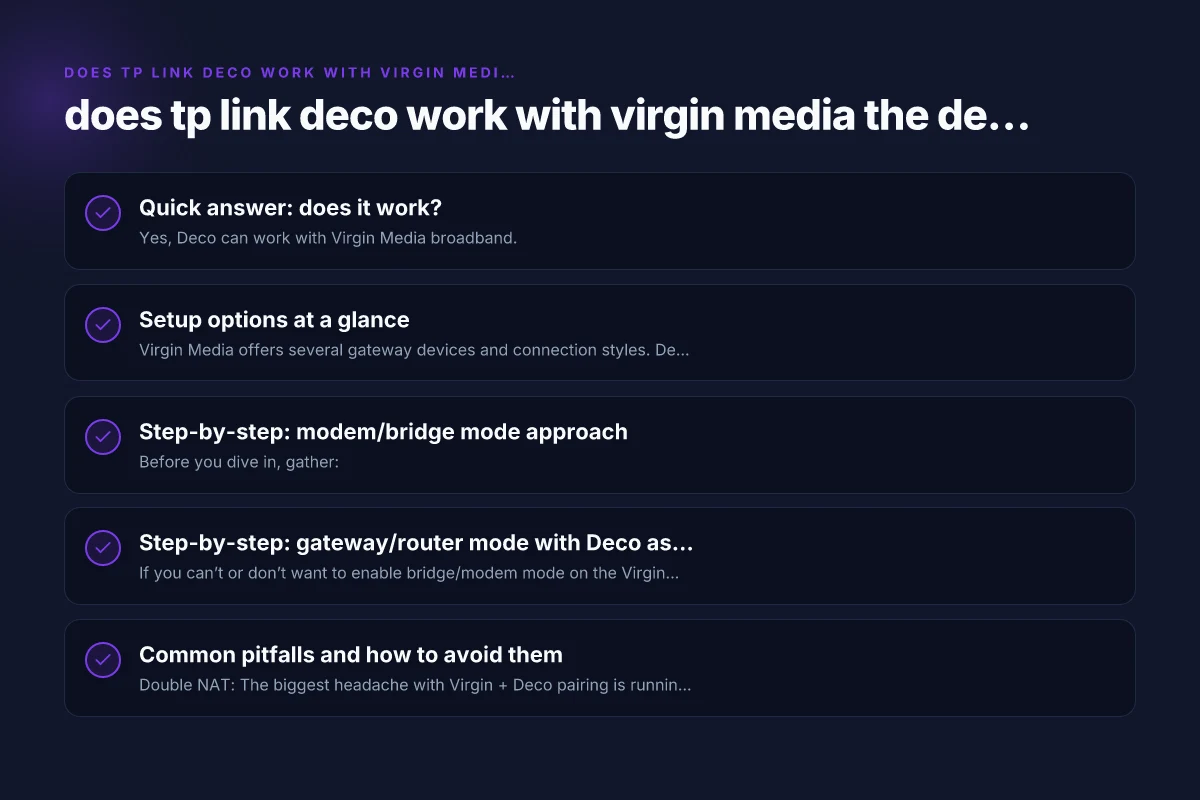
Quick answer: does it work?
- Yes, Deco can work with Virgin Media broadband.
- Most users achieve the best results by using Deco as the main router and putting Virgin’s hub into bridge or modem mode, depending on the model.
- You may also run Deco alongside Virgin’s gateway in router mode, but you’ll need to manage potential double NAT and SSID conflicts.
The “right” setup for you depends on your goals: maximum simplicity, or maximum control over networking features like VPN, port forwarding, and parental controls.
Setup options at a glance
Virgin Media offers several gateway devices and connection styles. Deco’s compatibility is influenced by whether your Virgin device is acting as a modem, a router, or a “gateway” router. Here are two common scenarios you’ll likely choose between:
- Modem/Bridge mode with Deco as the primary router
- Virgin Hub is put into modem or bridge mode (where supported).
- Deco units connect to the Virgin hub via Ethernet (or wirelessly if needed).
- Deco handles DHCP, NAT, firewall, and Wi‑Fi.
- Pros: fewer double NAT issues, clean network management in Deco app.
- Cons: configuring modem/bridge mode can be tricky. Some Virgin devices don’t expose pure bridge mode easily.
- Virgin Gateway in router mode, with Deco as a secondary/mesh router
- Virgin Hub remains the main router (still handling NAT and DHCP).
- Deco is added to extend Wi‑Fi and provide mesh coverage.
- Pros: simpler initial setup if you’re not comfortable changing gateway settings.
- Cons: potential double NAT. Some features may be limited. You’ll need to configure IP addressing carefully.
TP-Link’s UK guidance and community experiences highlight these setups as the most reliable starting points.
Step-by-step: modem/bridge mode approach
Before you dive in, gather: Does ring camera work with 5ghz Wi-Fi the definitive guide
- Your Virgin Hub model and firmware version.
- An Ethernet cable long enough to connect the Deco to the Virgin hub.
- The latest Deco app on a smartphone or tablet.
- Check if Virgin hub supports bridge/modem mode
- Some Virgin hubs (especially newer models) support a bridge mode or “modem mode.” If your model doesn’t explicitly offer bridge mode, you may need to use the “IP Passthrough” or similar configuration, or use the hub as a pure modem with router disabled.
- Important: enabling bridge or modem mode often requires logging into the hub’s admin interface and disabling the router function.
- Disable DHCP/NAT on the Virgin hub (if in bridge mode)
- In bridge mode, the Virgin hub should pass the public IP to the Deco, and the Deco will handle DHCP/NAT.
- If the hub remains in router mode, you’ll have two DHCP servers (double NAT), which can cause issues for devices and gaming.
- Connect Deco and power on
- Connect the first Deco unit to the Virgin hub with an Ethernet cable to the WAN/Internet port on the Deco.
- Use the Deco app to set up the first unit as the main router. The app will guide you through creating a network name (SSID) and password.
- Add additional Deco units
- Place additional Deco units around the home to improve coverage and connect them via Ethernet backhaul when possible for best performance.
- The Deco app will guide you through mesh linking and optimization.
- Test and fine-tune
- Check signal strength in the Deco app. Relocate units if necessary.
- Run speed tests in the Deco app or at devices to confirm performance.
Tips:
- Use 2.4 GHz and 5 GHz bands under the same network name for seamless roaming.
- If you encounter issues, try rebooting the Virgin hub, then the Deco units in sequence.
Step-by-step: gateway/router mode with Deco as an extender
If you can’t or don’t want to enable bridge/modem mode on the Virgin hub, you can still use Deco effectively.
- Keep Virgin hub in router mode
- Leave NAT and DHCP on the Virgin hub as the main router.
- Connect the Deco in Access Point or Router mode
- In the Deco app, you can set the first Deco as an access point to extend Wi‑Fi rather than replace the gateway.
- Alternatively, you can set Deco as the primary router in a separate subnet, but this requires careful IP schema planning to avoid conflicts.
- IP addressing considerations
- If you keep both devices in router mode, you may encounter double NAT. A common approach is to turn off the DHCP server on the Virgin hub and let Deco handle DHCP, effectively placing Deco as the main router.
- If you want a separate network for guests, you can configure a guest network within Deco without affecting your primary network.
- VLANs and port forwarding
- If you need specific port forwarding rules for services (gaming consoles, servers), you’ll usually set these in Deco’s router settings when Deco is the main gateway.
- Troubleshooting
- If devices fail to obtain IP addresses, verify DHCP is enabled on the active router (Deco or Virgin hub, depending on your setup).
- If you experience streaming buffering or gaming lag, ensure Deco units have stable backhaul (Ethernet backhaul if possible) and avoid channel interference by selecting a clear channel.
Quick answer decision snapshot
| Scenario | Recommended Deco mode | VM compatibility note | Typical speed impact | Setup complexity | Best for |
|---|---|---|---|---|---|
| Virgin Media router + Deco for whole home | Deco as router or gateway with bridge on VM | Works with most VM hubs | Slight loss if misconfigured | Moderate | Need Deco features across home |
| VM modem in bridge, Deco as main router | Deco in gateway/router mode with bridge off | Best for full control | Minimal | Moderate | Clean network control |
| Extend existing VM Wi‑Fi | Deco in AP/extender mode | VM network unchanged | Minor speed boost | Easy | Simple extension |
Compiled November 2026; check the provider's site for current details. Do you pay taxes on washington paid family leave
Common pitfalls and how to avoid them
- Double NAT: The biggest headache with Virgin + Deco pairing is running two devices performing NAT. Resolution: switch Virgin hub to bridge/modem mode if possible, or set Deco as the primary router and disable DHCP on the Virgin hub.
- SSID conflicts: If you use similar SSIDs on both devices, devices may switch between networks too aggressively or fail to roam. Resolve by keeping a single Wi‑Fi network name for Deco, or segment networks clearly (e.g., main network on Deco, a separate guest network on Virgin).
- Reboot loops and linking failures: If Deco cannot link to the main unit after reboot, ensure the first Deco is connected to the Virgin hub and powered up first, then open the Deco app to allow linking.
- Firmware incongruities: Keep both your Deco and Virgin hub firmware up to date to avoid compatibility issues. Check the TP-Link UK support pages for updates or known issues.
Quick comparison: Deco operating modes with Virgin Media
| Scenario | Virgin Hub mode | Deco primary router | Pros | Cons |
|---|---|---|---|---|
| Modem/Bridge mode + Deco as router | Yes | Yes | Clean network, single DHCP/NAT, best roaming | Some hubs don’t support full bridge; setup can be fiddly |
| Router mode + Deco AP/extender | No | Yes ( Deco handles routing) | Simple initial setup, strong mesh control | Potential double NAT unless carefully configured |
| Router mode + Deco as separate subnet | No | Yes | Clear separation of networks; advanced control | Complex IP planning; less seamless roaming |
Note: The exact capabilities depend on your Virgin hub model and firmware version. TP-Link’s official UK support articles provide model-specific advice and steps, and user forums often share device-specific workarounds.
Real-world experiences from users
- Some users report success by putting Virgin hubs in modem/bridge mode and letting Deco handle routing, especially with Deco M5 and M4 variants.
- Others prefer to keep Virgin hubs in router mode and use Deco in AP mode to extend coverage, accepting potential double NAT but avoiding a tricky bridge setup.
- A common thread is that performance improves when the Deco mesh has Ethernet backhaul (a wired connection between Deco units or from the Virgin hub to the first Deco) rather than relying solely on wireless backhaul.
How to decide your best setup
- If you want the most control, go for bridge/modem mode and use Deco as the main router. This avoids double NAT and gives Deco full features (parental controls, QoS, VPN, etc.).
- If you value simplicity and willingness to tinker, keep the Virgin hub in router mode and configure Deco as an AP or primary router, carefully managing DHCP and IPs to avoid conflicts.
- If you have a large home or segments with poor Wi‑Fi, add more Deco units and place them to maximize coverage. Always prefer wired backhaul when feasible.
Practical setup checklist
- Identify your Virgin hub model number. Check if bridge/modem mode is supported.
- Decide whether to enable bridge/modem mode or keep Virgin hub as router.
- Prepare a wire-connected first Deco unit to the Virgin hub (preferred for stability).
- Use the Deco app to create a consistent network name and password across all Deco units.
- Place Deco units strategically to minimize dead zones. Aim for a strong backhaul (prefer Ethernet where possible).
- Update firmware on both Deco units and Virgin hub (where possible).
- Monitor network performance using the Deco app’s diagnostics and adjust placement as needed.
Step-by-step setup at a glance (condensed options)
| Step | If using gateway mode | If using router mode with Deco as extender | Key caveats | Quick tip | Status indicator |
|---|---|---|---|---|---|
| 1 | Put VM modem in bridge | Place Deco as AP/extender | Disable double NAT | Use Ethernet backhaul if possible | Ready |
| 2 | Connect Deco to VM modem | Connect Deco to main VM network | Disable VM WLAN broadcasting if using Deco | Use wired backhaul | OK |
| 3 | Run Deco app to configure | Run Deco app to configure | Check DNS and DHCP | Use single SSID | Config OK |
| 4 | Verify internet | Verify roaming | Confirm bridge/router behavior | Reboot devices | Working |
Compiled November 2026; check the provider's site for current details.
Final recommendation
If your goal is the most straightforward, reliable home Wi‑Fi with minimal conflicts, the recommended approach is to use Virgin Media in modem/bridge mode (if your model supports it) and run Deco as your primary router. This gives Deco full control over your network, simplifies DNS/DHCP management, and generally yields better mesh performance across your home. If bridge mode isn’t available or you prefer a simpler setup, run Virgin Hub in router mode and configure Deco as your main Wi‑Fi source while disabling the Virgin hub’s DHCP. In either scenario, place Deco units where they can communicate well (ideally with a wired backhaul) and use the Deco app to optimize placement, channels, and guest networks. By following these practices, TP-Link Deco can deliver strong, stable, whole-home Wi‑Fi with Virgin Media. Do eufy cameras work with 5ghz WiFi the complete guide